Free PDF Editor (Change Text, Add Signature)
To edit a PDF, open the file, click existing text with “Edit text” to change it or use “Add text” to type anywhere, then click “Save PDF”. You can also white-out areas, insert a signature image and rotate or delete pages. Everything runs in your browser, so the document is never uploaded.
Processed in your browser — files are never uploaded
Drag PDF files here or click to select
Edit text, add signatures, rotate or delete pages
How to use
- 1
Open a PDF
Drop a PDF onto the upload area or click it to choose a file. Every page is shown on screen.
- 2
Change or add text
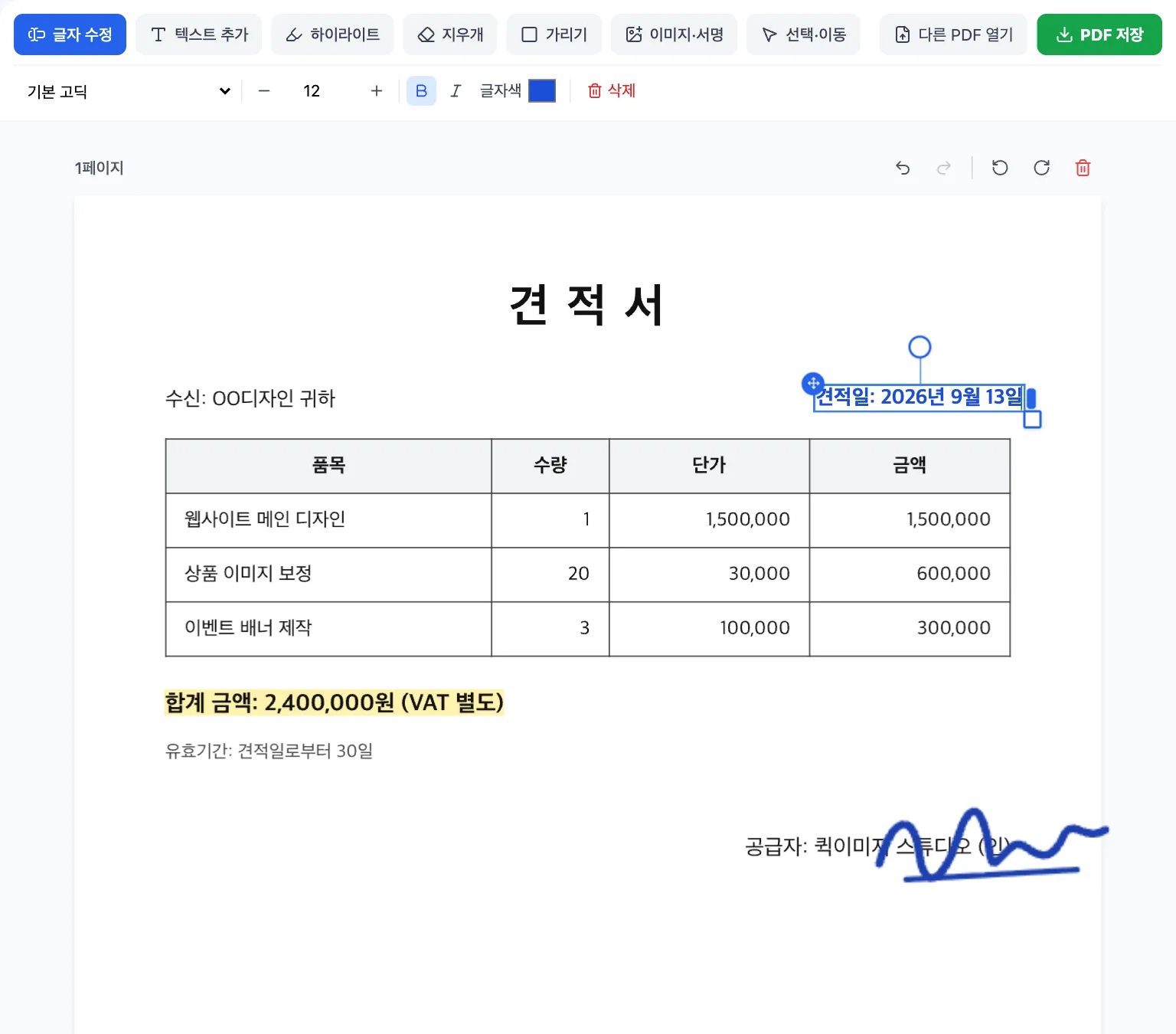
In “Edit text”, click existing text: the original is covered and an editable box with the same text appears in the same place. “Add text” places new text where you click.
- 3
Sign, cover and organize pages
Use “Image / Signature” to insert a signature or stamp, “White-out” to cover parts you don't need, and the rotate or delete buttons on each page.
- 4
Save the PDF
Click “Save PDF” to download a new PDF with your changes. The original file is not modified.
Example
Why use Quick Image
- Files stay on your device — nothing is uploaded
- Replace existing text in place, at the same size
- Insert signatures and stamps, rotate or delete pages
- Free with no watermark or sign-up
Frequently asked questions
Can I change the existing text in a PDF?
Yes. In “Edit text”, click the text: it is covered with its background color and an editable box with the original sentence appears at the same position and size. The new text uses a standard font, so it may look slightly different from the original font.
Is my PDF uploaded to a server?
No. Opening, editing and saving all happen inside your browser, so the file never leaves your device.
Why can't I click the text in my scanned PDF?
A scanned PDF contains a picture of the page, not real text. Cover the area with “White-out” and type new text with “Add text” instead.
Can I add a signature to a PDF?
Yes. Save your signature as a PNG or JPG image, click “Image / Signature” and click where it should go. A transparent PNG looks most natural; drag to move it and use the corner handle to resize.
Does White-out permanently delete the covered content?
No. White-out only covers content visually; the original text stays inside the file and can still be copied. Do not use it to redact confidential information.
Is text I add searchable or selectable?
Added or changed text is embedded as a high-resolution image so it looks identical in every PDF viewer, which means it cannot be searched or copied. Original text you did not change stays searchable.
Can I change the font, size or bold of the text?
Yes. Select a text box and a toolbar appears above it where you can change the font (sans-serif, serif, Nanum fonts, handwriting and more), size, bold, italic and color.
Can I highlight text like a highlighter pen?
Yes. Choose “Highlight” and click a line of text to highlight it, or drag to mark any area. You can pick yellow, green, pink, blue or orange, and the text stays readable under the highlight.
Last updated: